The Virtual Keyboard was developed for Samsung Smart TV, but it can be used with other compatible devices.
You can also use this keyboard with a wireless mouse and regular computer connected to HDTV.
In this case you don't need to keep bulky keyboard on a couch to search for news or favorite movies.
Check YouTube Demo
video to see how easy it is to use this keyboard.
It can be used for searching video, news, directories, search engines and other sites listed on the Virtual Keyboard Smart TV page.
This keyboard has the same layout as a standard physical keyboard and can be controlled by mouse or regular TV remote control.
Click on the image below or on a link to open Virtual Keyboard for Smart TV page:
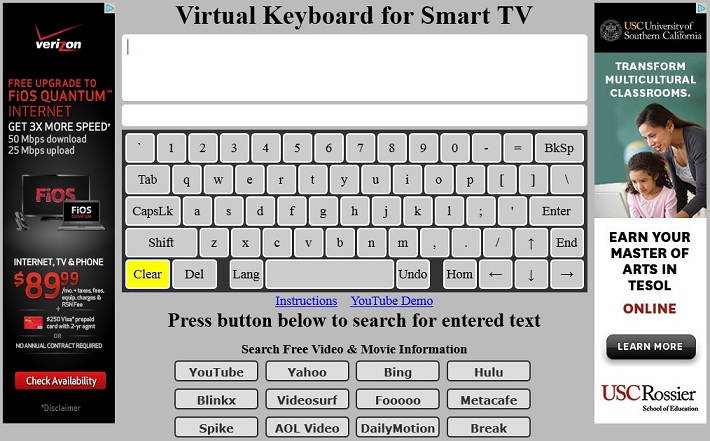
To type a character using remote control, make sure the TV Internet Browser is in TAB mode,
move the cursor to required character using arrows and press "Enter" button on the remote control.
You can search for entered text on major Video Streaming Sites, Search Engines, News, Directories, Entertainment and other selected sites.
To submit a search press the button assigned to the required service.
You can do it with your remote by moving the active cursor to that button displayed on the screen and pressing "Enter" on the remote control.
No need to re-type your query on each site, every site is opened in a new window,
so the window with Virtual Keyboard stays intact. If you want to search for entered query on different site
just press "Return" button on remote control.
You also can enter a URL and navigate your browser to that location using the "Navigate" button.
We recommend you to start the URL with "www." and the keyboard will suggest you the most popular Internet sites.
The Virtual Keyboard provides you with word suggestions and spell checking service
(currently suggestions are provided for English, French, German, Italian, Portuguese, Russian, Spanish and more languages are coming).
Note, the suggestions are case sensitive, you will get better results typing a city, or movie, or person name starting with capital letter.
To select a suggested word, move the cursor to a suggestion and press "Enter" on remote control.
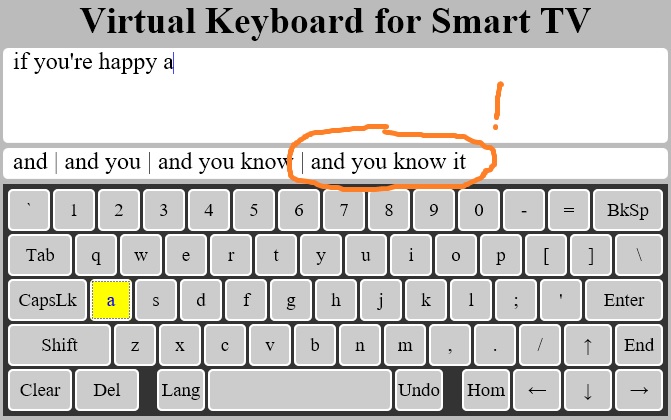
The keyboard supports following keys: TAB, CAPSLOCK, SHIFT, DEL, BACKSPACE, CURSOR NAVIGATION
(LEFT, RIGHT, UP, DOWN, HOME, END), as well as UNDO and LANG. The UNDO button allows you returning to previous phrase.
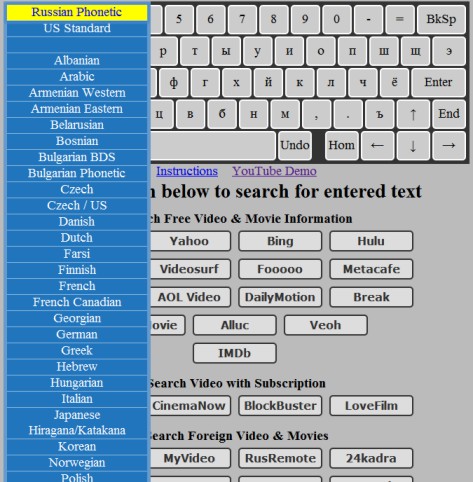
The LANG button changes keyboard language.
The keyboard supports entry in many languages and different layouts:
Albanian,
Arabic,
Armenian Western,
Armenian Eastern,
Belarusian,
Bosnian,
Bulgarian BDS,
Bulgarian Phonetic,
Czech,
Czech / US,
Danish,
Dutch,
Farsi,
Finnish,
French,
French Canadian,
Georgian,
German,
Greek,
Hebrew,
Hungarian,
Italian,
Japanese Hiragana/Katakana,
Korean,
Norwegian,
Polish,
Portuguese,
Portuguese / Brazil,
Romanian,
Russian,
Russian Phonetic,
Serbian Cyrillic,
Slovak,
Spanish,
Swedish,
Swiss French,
Swiss German,
Turkish Q,
Vietnamese,
Ukrainian,
United Kingdom,
US International,
US Standard,
Uzbek Cyrillic.
You can change keyboard language using the "LANG" button. Two latest languages stay on top of a list for your convenience.
Note, this keyboard doesn't use ALT key. To select additional international characters you need to click CapsLk button several times.
Example: To enter letter 'ä' while using US English layout, select "US International" in languages,
click CapsLk button two times and enter the letter, which will appear on the keyboard.
You can translate your text in English to other languages using Translation buttons. Your browser will be automatically redirected to Google Translation service.
Installation: The Virtual Keyboard for Smart TV does not require any installation.
This is just a web page, which you need to open in Smart TV Web browser.
If your Smart TV does not have a Web browser, it means that it is not that smart and you cannot use this program. :-(
Many people are asking - how to open the web page in a browser if you don't have a keyboard to type the web page address?
In most cases the Smart TV allows entering text using regular remote. Usually a TV displays on-screen keys for entering the text.
The process is slow and tedious, however you need to do it only once.
Enter URL: http://www.softcorporation.com/smarttv/smarttv.html and make sure the browser has navigated to this page.
As soon as you get there, you can save the Virtual Keyboard for Smart TV page
as the Web browser home page and then it will be ready to use when you open your Smart TV Web browser.
To set Virtual Keyboard for Smart TV page as a home page for your Samsung Smart TV Web browser,
select the very right Smart TV browser top menu icon "Settings", go to "Option" menu and select menu item "Set as homepage".
For more information send request to: info@softcorporation.com
Home |
